Glinster Measures Your Hand and Turns iPad and iPhone Glass into an MPE Instrument

Most touchscreen instruments hand you a layout and ask your fingers to adapt to it. Glinster, released on 3 November by Geert Bevin's company Uwyn, works the other way round. It measures your hand first, then puts the notes where your fingers already are. In Bevin's words: "On iPhone and iPad, you place your hand anywhere on the glass and the notes appear under your fingers."
It is both an instrument with its own sounds and an MPE MIDI controller, and one $9.99 App Store purchase covers iPhone, iPad and Apple Vision Pro, with the AUv3 plugins included. There's no free tier and nothing to unlock. We haven't played it ourselves yet, so this is a first look based on Uwyn's documentation, press materials and App Store listing.
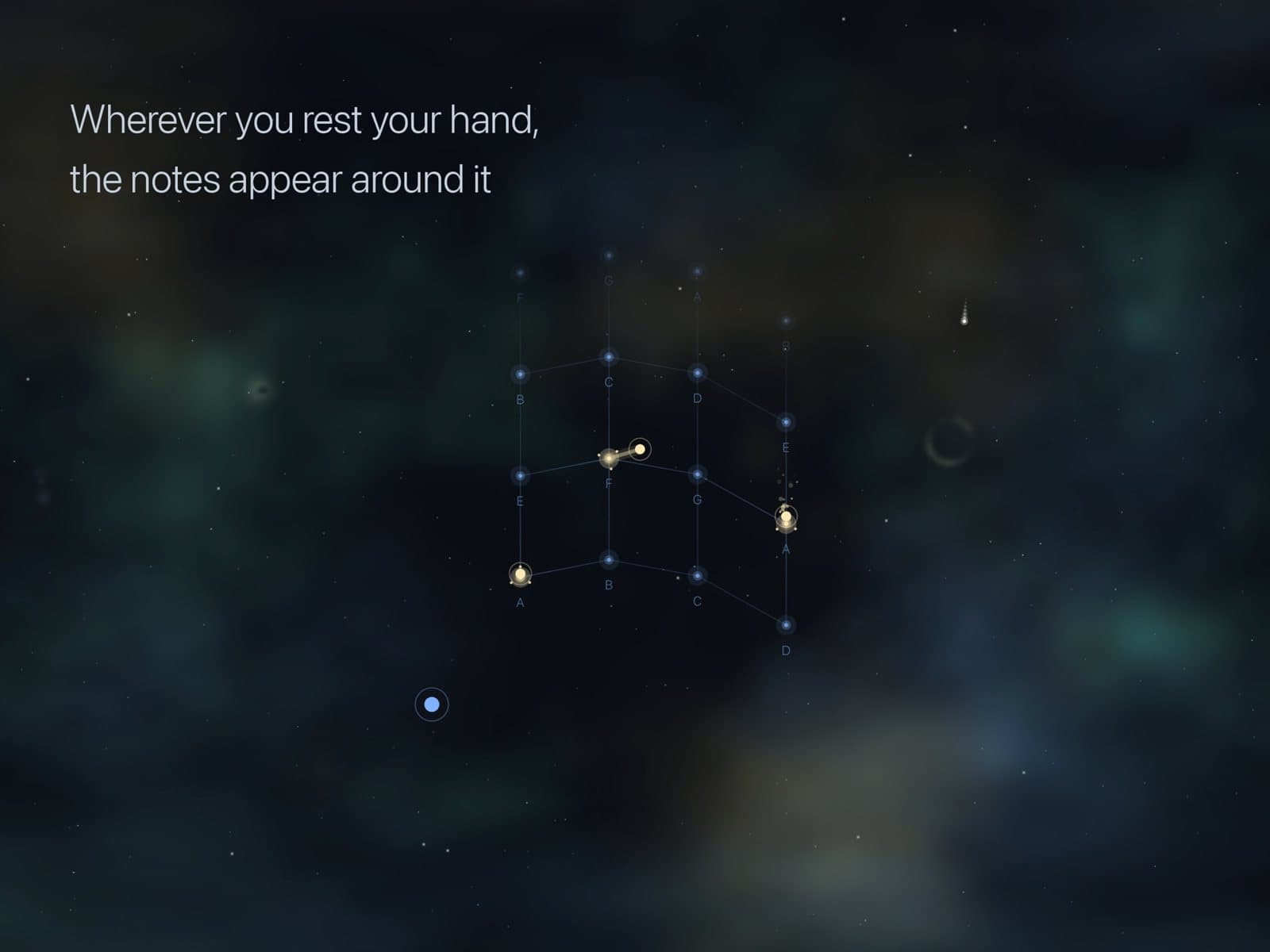
 Wherever you rest your hand, the notes appear around it. Image: Geert Bevin / App Store
Bevin's own 90-second iPad demo shows the hand fitting and then the playing gestures:
An instrument that fits your hand
The first time you start Glinster, it asks you to fit your hand. You hold two poses, keeping each one still until a ring fills. First you rest the side of your thumb and all four fingertips on the glass, relaxed. Then you keep the thumb in place and move the fingers up "one comfortable step, not stretched as far as they go", as the manual puts it. From those two poses Glinster learns how far apart your fingers sit, how far you reach and how your fingers arch.
That arch matters. Most hands rest with the middle finger higher than the others and the little finger lower, so every row on the grid is curved to match. The aim is that each finger lands on its own note without you flattening your hand. Left-handed players are detected from the way they rest their hand, and the notes then run leftward from the thumb.
After the fit, the thumb becomes an anchor. Wherever you put it, a grid appears beside it. Your four resting fingers play the first four notes of the scale, with the root under your index finger, and the row above plays the next four, up to the octave. On a screen with room above, which on iPad means plenty, more rows continue the scale upward.
 The grid learns your hand and follows it while you play. Image: Geert Bevin / App Store
The grid isn't a fixed target either. Every note nudges it a little to follow your hand, and between notes it eases back toward the hand you fitted, so aiming at the marks on screen can't drag it off to one side.
Bending, brightness and the other hand
Once a note is sounding, sliding that finger sideways bends its pitch and sliding it up and down changes its brightness. Your resting thumb slides up and down for volume, which applies to every note at once. A bend is measured from where the note started, so a small sideways drift as your finger lands is absorbed instead of putting the note out of tune.
 Slide sideways to bend, up and down to shape the tone. Image: Geert Bevin / App Store
By default every finger plays its own note with its own bend and brightness. Switch on Mono and a new finger takes over from the one sounding, with a glide instead of a new attack.
Your other hand is optional. Rest one of its fingertips beside your playing hand, on the side away from the notes, and arrows appear above and below it. One step up shifts everything a semitone, two steps an octave, and the same applies going down. The arrows combine, so an octave up held with a semitone down sounds eleven semitones up. Sliding the anchor fingertip sideways bends every note at once like a pitch wheel.
 Every finger plays its own note, your other hand bends them together. Image: Geert Bevin / App Store
Pitch Quantize is on by default. When you hold a bent note still, it glides onto the nearest scale note and locks there, then lets go as soon as you move, so vibrato and slides aren't affected. There are three speeds, or you can switch it off. One practical difference between devices: an iPhone tracks at most five touches, while an iPad tracks more, which is where two-handed playing makes most sense.
MPE for the synths you already have
Glinster's most useful job may be as a controller. Its output is MPE, so each finger's note goes out on its own MIDI channel carrying its own pitch, brightness and volume, and a polyphonic MPE synth can follow every finger separately. Glinster assigns a fresh member channel to every note so release tails aren't cut off. You choose how many member channels to use, or switch to single-channel output for receivers that don't speak MPE.
 Full MPE MIDI to play your existing synths. Image: Geert Bevin / App Store
Volume and brightness can each be sent as channel pressure, CC 7, CC 11, CC 74 or CC 1. Pitch bend range is selectable at 2, 12, 24, 48 or 96 semitones. A Send MCM button resends the MPE configuration to a receiver that started late.
Glinster publishes a virtual MIDI source, can send directly to another app's MIDI input, handles Bluetooth LE MIDI in both directions, and supports Apple's network MIDI session, so a session set up in Audio MIDI Setup on a Mac can connect straight to your iPad or iPhone. Inside a host there are two Audio Unit extensions. Glinster is the full instrument on a track, and Glinster MIDI is the same playing surface without sound, sending its MPE stream into the host's MIDI routing. The hand fit is shared, so you only fit once per device.
Sounds, scales and recording
Uwyn is upfront about the built-in engine’s simplicity. The product page says it "is intentionally simple, with five fixed sound presets that you play rather than patches that you edit", and that Glinster is at its best as a controller for your existing synths and plugins.
The five presets are Aether, Ember, Fathom, Rime and Pillar, shaped by Room, Shimmer, Glide, Response, Cutoff and Resonance controls. There are sixteen scales, from the seven modes to the blues, whole tone and double harmonic, with twelve roots and a reference pitch from 432 to 446 Hz. An octave setting moves the whole instrument two octaves either way. Glinster can also record takes as lossless 32-bit float WAV files and play them back with the instrument still live, so you can play along.
From GECO to the glass
Bevin's background makes this release worth attention. He worked on the Eigenharp, created GECO, helped build LinnStrument with Roger Linn, is one of the authors of the MPE specification, and made the Moog apps for Apple platforms. He presents Glinster as a continuation: "Glinster continues what I started over a decade ago with GECO, which turned hand movements over a Leap Motion sensor into music."
On Apple Vision Pro, that idea runs without extra hardware. You touch your thumb to a fingertip to play a note in the air, raise your hand for volume, push forward for brightness and move sideways to bend, while a floating ruler shows the sounding note. Both versions share the same sound engine, scales and MPE output.
Requirements and who it's for
Glinster needs iOS 18 or iPadOS 18, or visionOS 26 on Vision Pro. The App Store also lists Apple silicon Macs on macOS 15 as "Designed for iPad", marked as not verified for macOS.
On paper it should suit players who already own MPE synths and want an expressive surface that doesn't involve buying a hardware controller, iPad players who want two-handed bends and chords, and left-handed or one-handed players, since Uwyn highlights both. Anyone wanting a deep standalone synth should take Uwyn's own advice about the simple engine. More details are on Uwyn's Glinster page, and the app is on the App Store.